
The Mesh Components
The template contains the following components, which are labeled by number in the template:
Domain: Defines the model domain extent using a single closed polyline curve as input.
Mining Area, Mining, and Fine Area: Outline regions requiring finer mesh discretization using one or more closed polyline curves as input.
Fault: Defines faults in the model domain. The mesh generator ensures nodes follow the fault line and applies user-specified width for accurate geologic representation. Input is a curve representing the fault centerline.
Points: Specifies points that must correspond to mesh nodes, such as pumping wells. Input consists of one or more points.
Polylines: Specifies curves that must correspond to mesh edges, such as rivers or streams, without associated width. Input consists of one or more curves.
Regions: Combines all mesh regions from the “Mesh Regions” group and connects the output to the “MMesh” component’s regions input.
All Faults: Combines all faults from the “Faults with Different Widths” group and connects the output to the “MMesh” component’s faults input.
MMesh: Receives input from regions, faults, lines, and points to generate a mesh. Mesh information appears in the yellow box.
Toggle: Toggles between “True” and “False” values for the “Simplify Lines” parameter. When “True,” “MMesh” simplifies line inputs; when “False,” it preserves original line inputs.
Area Tolerance: Specifies the minimum ratio between an element’s actual area and the maximum area assigned to its mesh region.
The user must import or create each feature in Rhino prior to connecting the features to the Grasshopper workflow. Note that all features must be located in the same 2-D plane. To connect features that exist in the Rhino workbook to the Grasshopper workflow, right-click on the input parameter in the top left corner of the component block and choose “Set One Curve/Point” or “Set Multiple Curves/Points.” Then select the desired feature in Rhino. This process is described in detail for each type of component in the following sections.
For the “Mesh Regions” components, in the purple box in the upper left of the Grasshopper worksheet, all active components must be connected to the “Regions” component. The “Regions” component must then be connected to “MMesh” at the terminal labeled “Regions.”
The “Domain” Component
The Domain component is used to specify the model domain boundary.
All parts of the mesh must be contained within the model domain
boundary. The input for this component must be a closed polyline curve.
The Domain component and its associated menus are shown in
fig-domain-component.
Note that curves that the user draws in Rhino may be non-uniform
rational basis spline (NURBS) curves. NURBS curves cannot be used in the
Grasshopper workflow but may be easily converted to polylines using the
“Convert” command in the Rhino command line. See the Rhino
documentation for more information. To connect a closed curve in the
Rhino workbook to the “Domain” component in Grasshopper,
right-click on the “Domain” input parameter in the upper left of
the component. Select Set One Curve from the menu. Then select the
curve that delineates the model domain boundary in the Rhinoceros
window.
The user can check that the desired curve was connected to the Domain
component by clicking on the Domain component so
that it is highlighted in green. In the Rhino workbook, any curve that
is assigned to the highlighted component will turn green. Curves may be
disconnected from the Domain component by right-clicking on the
Domain input parameter and selecting the Clear Values
option in the Domain menu, shown in fig-domain-component b.
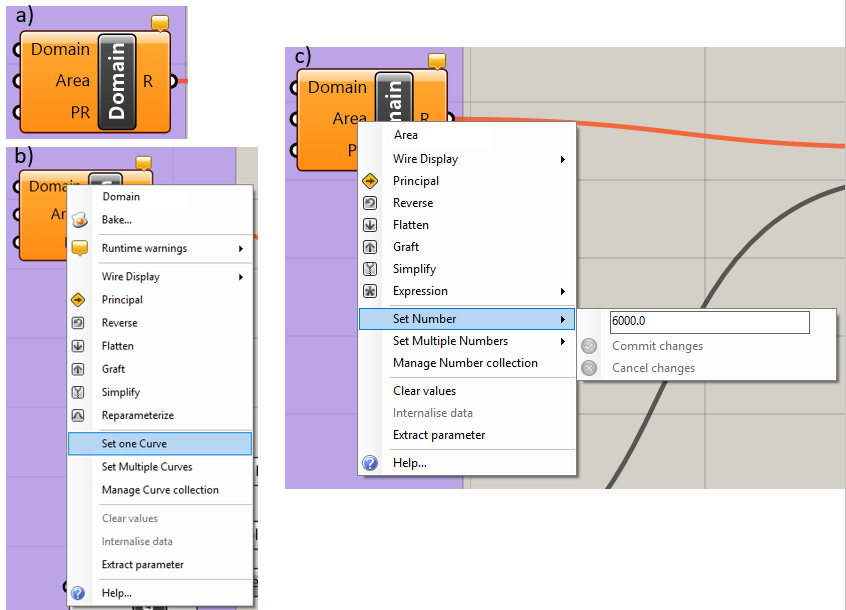
Figure 1: The “Domain” component: a) the component, b) the “Domain” input parameter menu, c) the “Area” input parameter menu
The maximum element area is set in two ways depending on whether the “Maximum Area” block and “Area” link in the “Domain” block are connected or not.
If the “Maximum Area” block and “Area” link in the
“Domain” block are not connected, the user can right-click on the
“Area” input parameter, which brings up the menu shown in
fig-domain-component. Click on the “Set Number” menu option and
enter the maximum
element size desired for the mesh; note that the user will have the
ability to add regions of finer discretization.
If the “Maximum Area” block and “Area” link in the
“Domain” block are connected, it also is only possible to set the
maximum element area by connecting the grey slider to the left of the
component, shown in fig-maximum-area-slider. The user can either use
the slider to
determine the value of the maximum area or double-click the grey area
and enter the value.
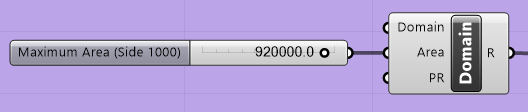
Figure 2: The “Maximum Area” slider
It should be noted that if the “Maximum Area” block is connected to the “Area” link of the “Domain” block, the value in the “Maximum Area” block will supersede the value that is entered in the “Area” parameter in the “Domain” block.
Blocks may be connected by clicking on the half circle of the
“Maximum Area” block and dragging the mouse to the half circle of
the “Area” parameter in the “Domain” block. Blocks maybe
disconnected by right-clicking the specific parameter in the
“Domain” block (i.e., “Area” in fig-maximum-area-slider)
and selecting
“Disconnect” from the pop-up menu.
The “Mining Area,” “Mining,” and “Fine Area” Components
The “Mining Area,” “Mining,” and “Fine Area” components are intended to allow the user to assign regions of increased mesh density to the area surrounding the mining activities, the location of the mining activities themselves, and any other areas that require it. The regions that the user assigns to any of these three components must be contained within the model domain that the user specified in the “Domain” component. These regions of fine mesh discretization may be located completely inside or completely outside of another fine mesh discretization region; however, they cannot partially overlap.
The “Mining Area,” “Mining,” and “Fine Area” components
are used in the same way as the “Domain” component. The user
right-clicks on the “Region” input parameter and selects the menu
option “Set One Curve” or “Set Multiple Curves” (see
fig-domain-component). The user then selects the curve or curves that
delineate the
region that requires a finer mesh. The user may specify the maximum
element area in the region by right-clicking on the “Area” input
parameter and selecting “Set Number” from the menu. Alternatively,
the user may set the maximum element size by connecting the “Area”
input to the “Maximum Area” slider and using the slider to select
the desired maximum element size, as shown in
fig-maximum-area-slider, or enter the
value as described in The “Domain” Component.
The “Fault” Component
The Fault component (fig-fault-component a) is used to create
faults that have width. The user must first create or import a curve that
delineates
the center line of a fault in Rhino. The user right-clicks on the
“Line” input parameter and selects the menu option “Select One Curve,” shown in fig-fault-component b. The user then selects the desired
curve
in Rhino. The user may also select the “Select Multiple Curves”
option and then select all the faults that have the same width. If
different widths are desired, the user must use multiple “Fault”
components. To disconnect curves, select the “Clear Values” option
in the “Line” input parameter menu, shown in
fig-fault-component b.
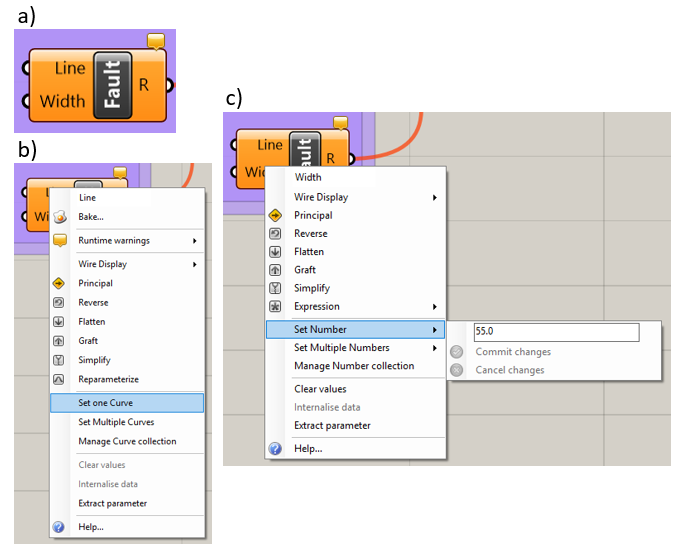
Figure 3: The “Fault” component: a) the component, b) the “Line” input parameter menu, c) the “Width” input parameter menu.
The width of the fault is specified for each “Fault” component by
right-clicking on the “Width” input parameter and selecting the
menu option “Set Number,” then entering the desired fault width.
This is shown in fig-fault-component c. Alternatively, the user may
connect the
“Width” slider, shown in fig-width-slider, to the “Width”
input
parameter and then use the slider to specify the desired fault width.
Note that if the slider is connected, the “Set Number” option will
be greyed out.
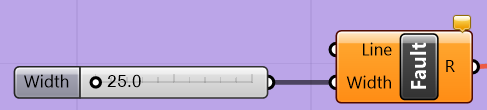
Figure 4: The “Fault” component with the width parameter slider
The “Points” Component
The “Points” component (fig-points-component) allows the user
to specify
points that will correspond to vertices in the mesh. This is typically
used for pumping wells or monitoring wells so that the code’s
calculation point will exactly match the location of the point feature.
To specify hard points, the user right-clicks on the “Points”
component and then selects either “Set One Point” or “Set
Multiple Points,” shown in fig-points-component. The user then
selects the
desired point or points in the Rhino workbook. The “SelPt” command may
be used to select all points in the Rhino workbook. The command line
will say “Point object to reference (Type=Point),” where the type is
“Coordinate” or “Point.” If the type is “Coordinate,”
Grasshopper will save the coordinates of the points at the time it is
connected to the Grasshopper workflow. If the point is moved later,
Grasshopper will not update its location. When the “Point” type is
used, Grasshopper will update the mesh if the point is moved later.
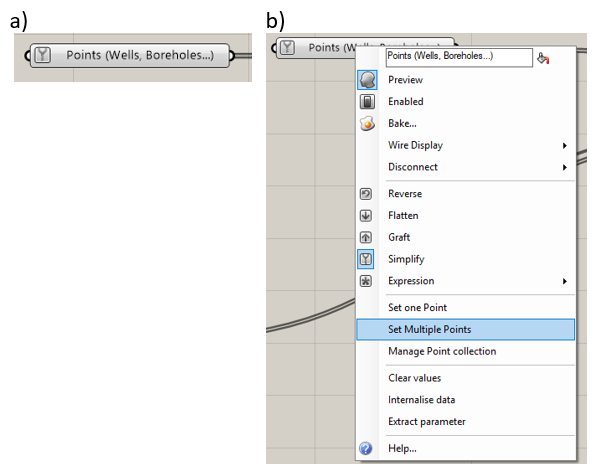
Figure 5: The “Points” component: a) the component, b) menu options
The “Polylines” Component
Curves assigned to the “Polylines” component will correspond to
mesh edges. This is typically used for rivers or other features that are
represented as curves and do not have a width assigned to them. The
component is shown in fig-polylines-component. To specify a hard
curve, right-click
on the “Polylines” component and select the “Set One Curve”
or “Set Multiple Curves” option, as in fig-polylines-component.
Select the
curve or curves that delineate the desired hard curves.
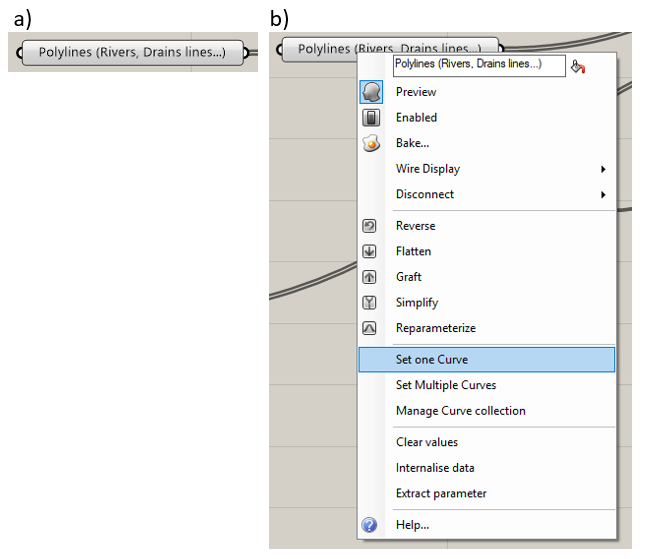
Figure 6: The “Polylines” component and menu options
The “Regions” Component
The “Regions” component receives the outputs from each component in
the “Mesh Regions” group, merges them together, and outputs the
result to the “MMesh” component. The component is shown in
fig-regions-component.
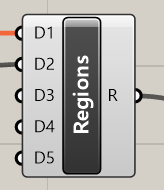
Figure 7: The “Regions” component
The “All Faults” Component
The “All Faults” component receives the outputs from each
component in the “Faults with Different Widths” group, merges them
together, and outputs the result to the “MMesh” component. The
component is shown in fig-all-faults-component.
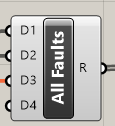
Figure 8: The “All Faults” component
The “MMesh” Component
The “MMesh” component, shown in fig-mmesh-component, receives
outputs from
the “Regions,” “Points,” “Polylines,” and “Faults”
components discussed above. In addition, “MMesh” has an “Area
Tolerance” input parameter, which is the ratio of the smallest
permissible area to the corresponding maximum area constraint. There is
also a “Simplify Lines” input parameter, which receives a Boolean
value from the “Toggle” component. If the value is “True,” all
polyline inputs will be simplified, meaning the number of control points
will be reduced and redistributed. This is recommended if there is a
small angle between curve features. Both the “Area Tolerance” and
“Toggle” components are discussed in further detail in the following
sections.
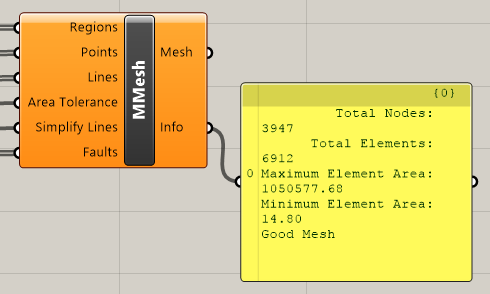
Figure 9: The “MMesh” component
The “Toggle” Component
The user assigns either a “True” or a “False” value to the
“Toggle” component. In the Grasshopper workflow shown in
fig-grasshopper-template,
the toggle output is connected to the “Simplify Lines” input
parameter in the “MMesh” component. Here, the “Toggle”
component allows the user to choose whether or not the “MMesh”
component simplifies any line inputs or not; “True” means that
lines are simplified, and “False” means that lines are not
simplified.
The “Area Tolerance” Component
The “Area Tolerance” component specifies the minimum value of the ratio between an element’s area and the maximum area specified for the region of the mesh that the element belongs to. The “MMesh” routine attempts to create elements that are as close as possible to the maximum element area specified by the user. If the “MMesh” routine is not able to create elements that are large enough to meet the area tolerance criteria, it will disregard hard points so that it can. Therefore, if a curve has too many control points in one section, or if there is a cluster of wells too close together to allow for element sizes to meet the area tolerance criteria, the “MMesh” routine may disregard points that the user specified to match with mesh nodes.
| Was this helpful? ... | Itasca Software © 2026, Itasca | Updated: Sep 09, 2026 |
