
Managing License Claims
Web licenses operate on a seat-based model where each active instance of the software claims a seat from the available pool. Understanding and managing these claims is essential for optimal license utilization.
Viewing Active Claims
The license manager displays all currently active license claims across your organization (see fig-islm-dialog-claims). This view provides:
User identification for each active claim
Machine name where the software is running
Claim start time and duration
Software version in use
Ability to release claims if needed
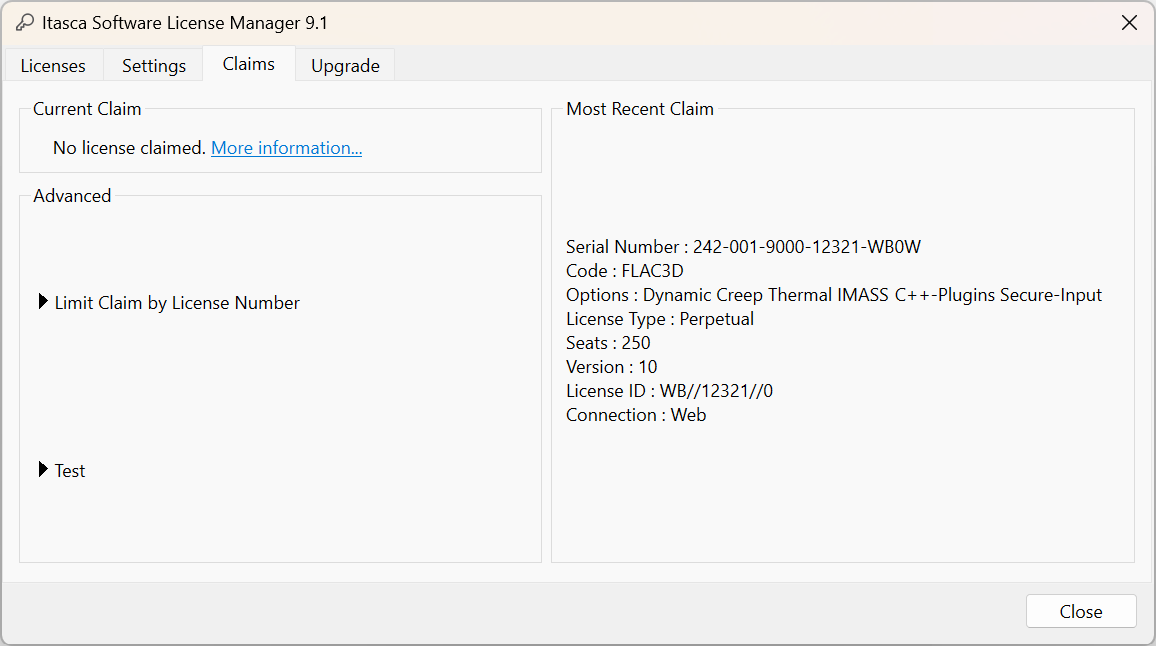
Figure 1: Active license claims showing current seat usage
Setting Claim Limits
Organizations can control license distribution by setting per-user claim limits (see fig-islm-dialog-limitclaims). This prevents individual users from consuming excessive seats and ensures fair access across teams.
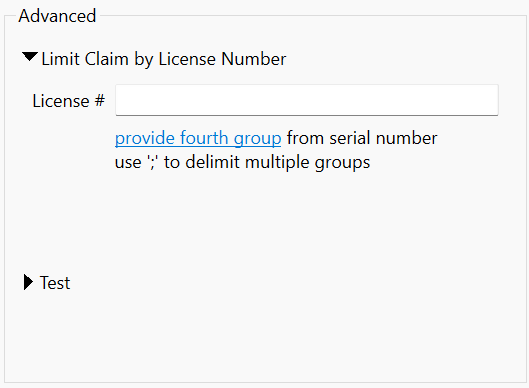
Figure 2: Setting limits on license claims per user
Quick Tips
Close MINEDW when finished to free seats for others
Claims automatically release if connection is lost
Contact your license administrator if all seats are occupied
Consider scheduling heavy computational work during off-peak hours
Common Issues
All seats are in use: Check the claims dashboard for inactive sessions or contact your license administrator.
Unable to claim a seat: Verify internet connectivity and that your organization has associated you with the license.
Claim persists after closing: Wait 5-10 minutes for automatic release or check for background processes.
For additional troubleshooting and technical support, see Technical Support.
| Was this helpful? ... | Itasca Software © 2026, Itasca | Updated: Sep 09, 2026 |
