
MPoint Modeling • Tutorials
Quick Start - Zone Conversion
This tutorial steps through the actions necessary to quickly create and run an MPoint model in two dimensions. It is aimed at users familiar with FLAC2D and the user interface. The focus is on providing basic familiarity with MPoint2D and the model components.
Create a new model and then create a new data file and add the commands to set gravitational acceleration
(model gravity) and activate large-strain mode so that the positions of
the MPoints are updated.
model new
; Model settings
model gravity 9.81
model large-strain on
The next steps are to create a rectangular column with the zone create
command, assign the Mohr–Coulomb constitutive model with
zone cmodel, set the properties with
zone property command, and initialize the gravitational stress state with
zone initialize-stresses. A constitutive model must be assigned before
its properties are specified.
; Create zones
zone create quadrilateral point 0 (-1,0) ...
                          point 1 (1,0) ...
                          point 2 (-1,2) ...
                          point 3 (1,2) ...
                          size 10 10

; Assign constitutive model
zone cmodel assign mohr-coulomb

; Set zone properties
zone property density 1500 young 100e6 poisson 0.25 ...
  friction 35 cohesion 500 tension 500

; Initialize stress
zone initialize-stresses
The initialized vertical stress is the \(yy\)-stress because the \(y\)-direction is vertical in MPoint2D.
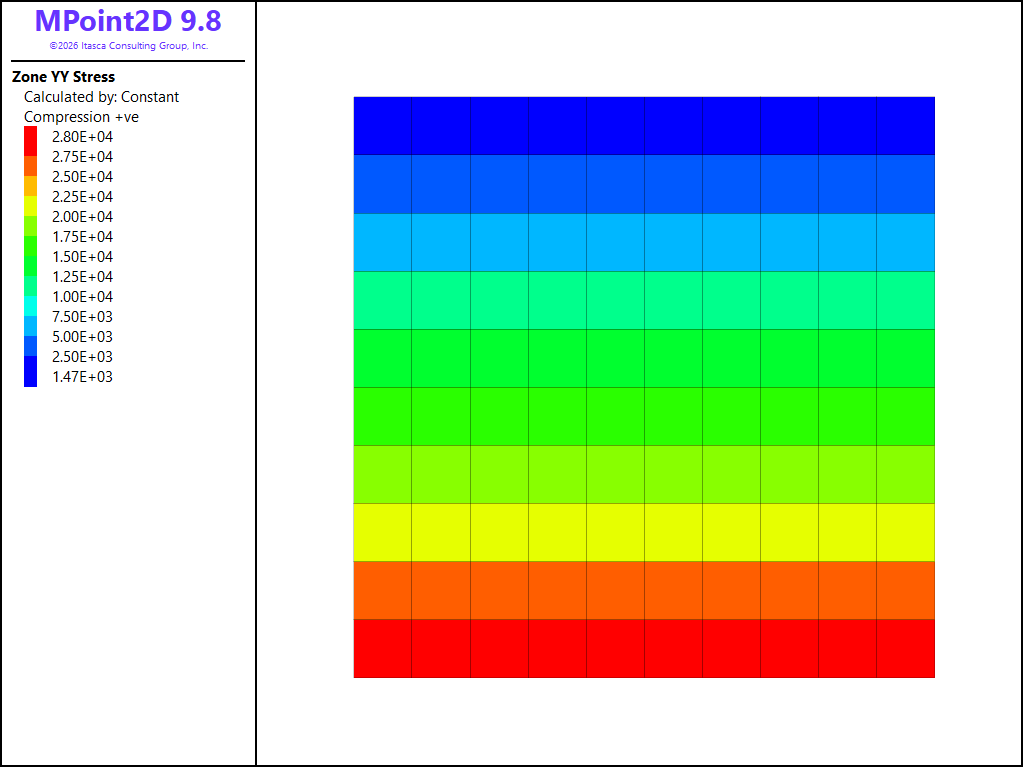
Figure 1: Zones created and the vertical stress initialized.
Next we need to create the background mesh. First specify the extents of model domain, inside which the model will exist. By default, material points hitting the edge of the domain will stop, but it is also possible to have them reflected or destroyed (see model domain).
Next, specify the node spacing. In this example, we’ll assume a spacing of 0.2 m (the same as the zone edge length). By default, the background nodes will fill the domain.
; Create background mesh
model domain extent -4 4 0 2.5
mpoint node spacing 0.2
Execute the data file only through the background-grid creation command and
stop before executing mpoint import. At this stage, both the FLAC2D
zones and the MPoint background nodes exist and can be shown in the same plot.
The zone edge length is 0.2 m, so a background-node spacing of
0.2 m gives comparable spatial resolution.
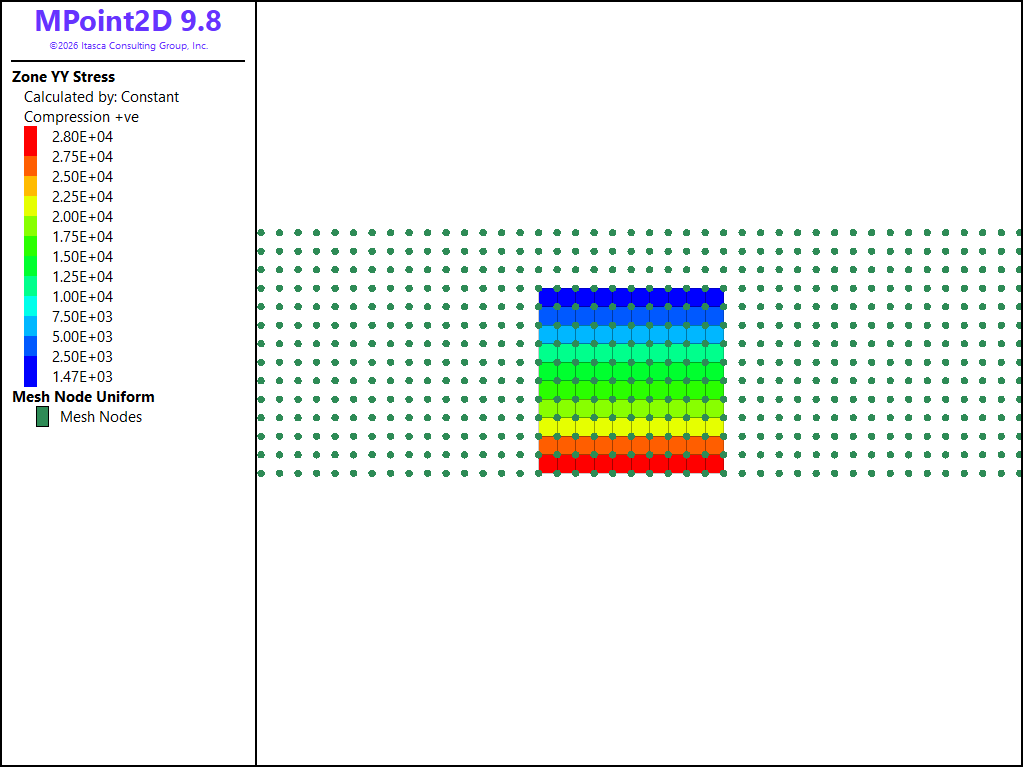
Figure 2: The MPoint2D background nodes shown relative to the zones.
Continue the execution with the mpoint import command. The MPoint
positions and volumes are computed automatically. The constitutive models,
densities, displacements, groups, stresses, and velocities are inherited from
the zones, and the source zones are deleted.
; Import mpoints from zones and delete zones
mpoint import from-zones
Plotting the MPoint \(yy\)-stress immediately after conversion produces a stress state equivalent to the zone stress state before conversion.
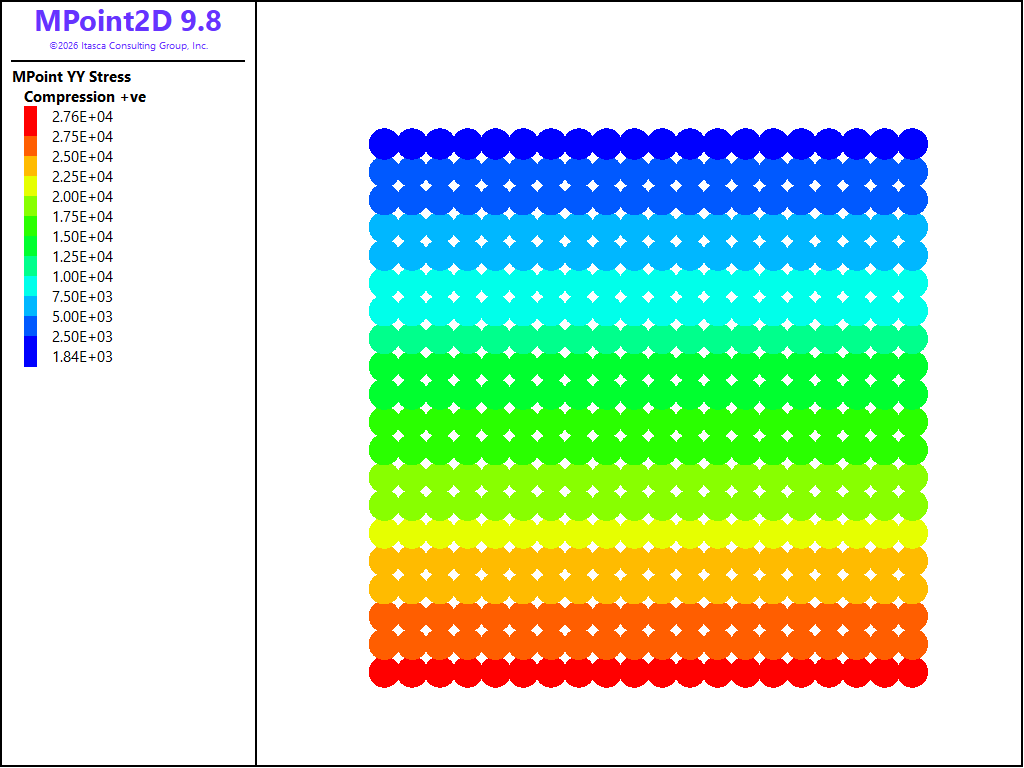
Figure 3: Imported MPoints with the inherited vertical stress \(\sigma_{yy}\).
Apply constraints to the background nodes by fixing the y-velocity for all nodes at \(y=0\).
; Fixities
mpoint node fix velocity-y range position-y 0
Because the material may not come to equilibrium, run the model for a
specified number of calculation cycles instead of using
model solve.
; Running the model
model cycle 10000
The final configuration, colored by MPoint displacement magnitude, is shown below.
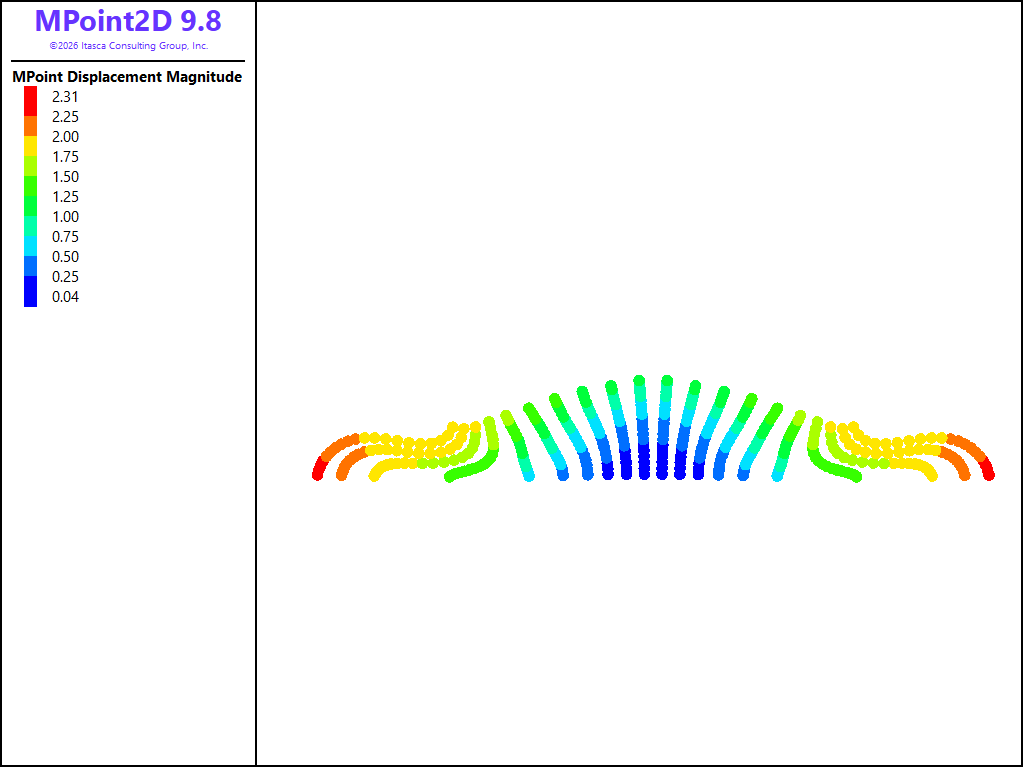
Figure 4: MPoint displacement magnitude at the end of the simulation.
The same data is shown in Figure 5 plotted as a continuum.
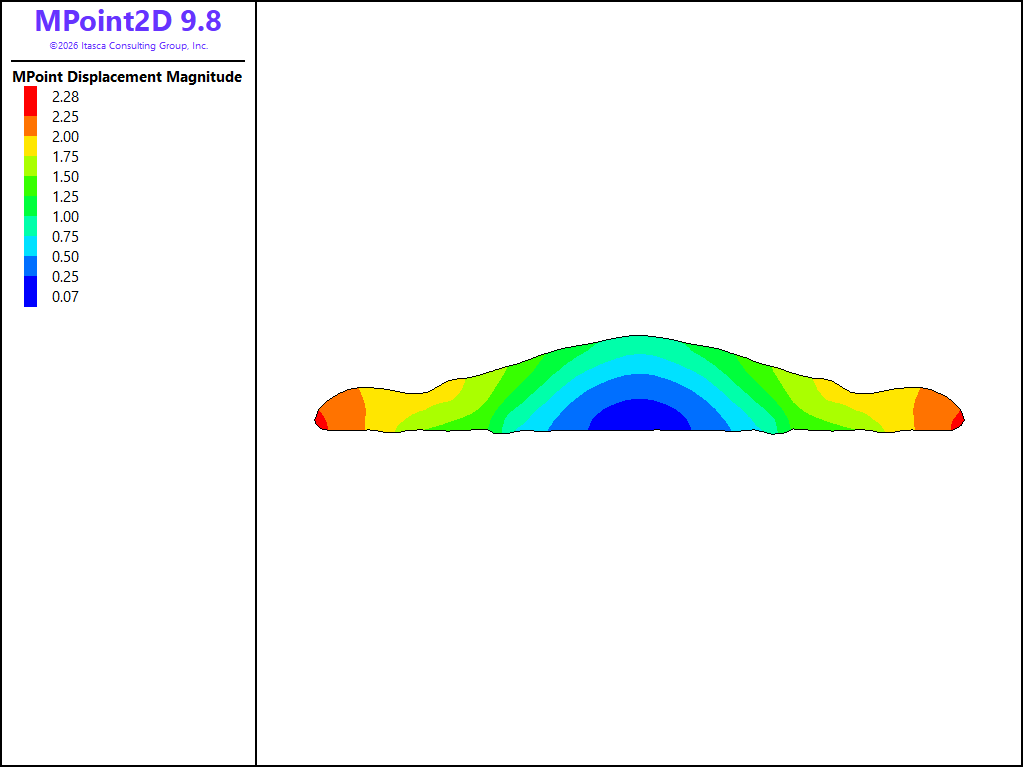
Figure 5: MPoint displacement magnitude after 10,000 cycles, plotted as a continuum.
The complete data file is included below.
 1model new
 2; Model settings
 3model gravity 9.81
 4model large-strain on
 5
 6; Create zones
 7zone create quadrilateral point 0 (-1,0) ...
 8                          point 1 (1,0) ...
 9                          point 2 (-1,2) ...
10                          point 3 (1,2) ...
11                          size 10 10
12
13; Assign constitutive model
14zone cmodel assign mohr-coulomb
15
16; Set zone properties
17zone property density 1500 young 100e6 poisson 0.25 ...
18  friction 35 cohesion 500 tension 500
19
20; Initialize stress
21zone initialize-stresses
22
23; Create background mesh
24model domain extent -4 4 0 2.5
25mpoint node spacing 0.2
26
27; Import mpoints from zones and delete zones
28mpoint import from-zones
29
30; Fixities
31mpoint node fix velocity-y range position-y 0
32
33; Running the model
34model cycle 10000
35
36; Save the model
37model save 'quickstart2d'
| Was this helpful? ... | Itasca Software © 2026, Itasca | Updated: Sep 30, 2026 |
