
Validate
The “Validate” function in the “Run” drop-down menu checks all
model inputs before creating model files. Selecting “Validate” from
the “Run” drop-down menu opens the “Validate Model” dialog box
with two tabs: “General” and “Extend.” The “General” tab
(see fig-validate-general) displays general information about the
model, including the number of nodes and elements.
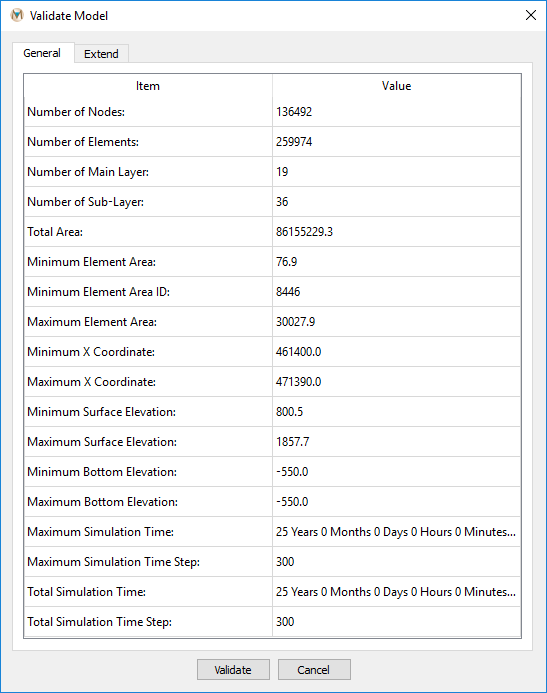
Figure 1: The “General” tab in the “Validate Model” dialog box
The “Extend” tab (see fig-validate-extend) contains
additional information about the model, including boundary conditions and
mining information. Review information on both tabs to ensure the model is defined
correctly.
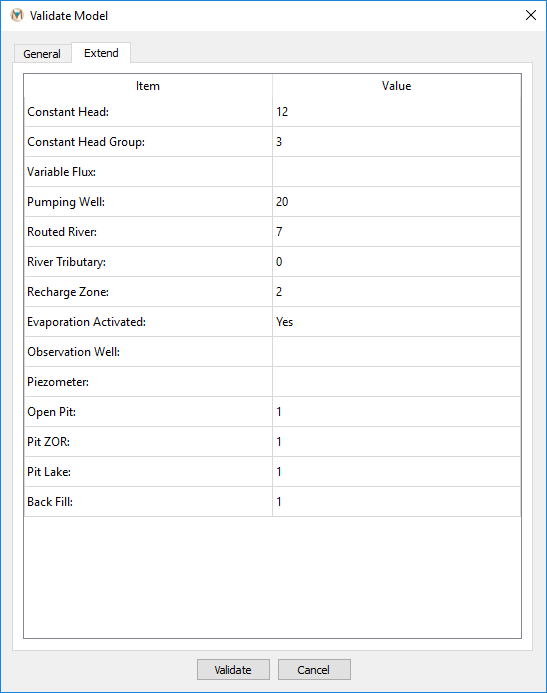
Figure 2: The “Extend” tab in the “Validate Model” dialog box
Clicking the “Validate” button at the bottom of the dialog box checks
all model inputs. Errors appear in red in a pop-up window; if no errors exist, none are listed
(see fig-validate-completed). Fix all
errors before running the model. If there are no errors, the
model is ready for simulation. Click “OK” to close the “Validate
Model” dialog box.
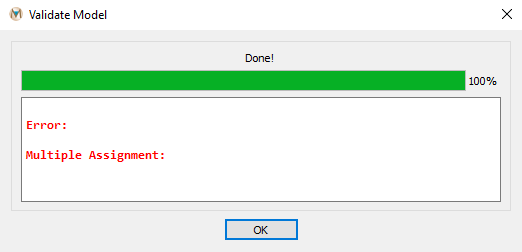
Figure 3: A completed model validation
| Was this helpful? ... | Itasca Software © 2026, Itasca | Updated: Sep 09, 2026 |
